Vibe Browser for
Give Muse control of your browser
Turn on Remote in the Vibe extension, send Muse one prompt, paste your session ID on the secure card — and Muse can use your real Chrome.
The steps follow the Muse app as it works today: one prompt in chat, the session ID pasted on the secure Add custom connector card, then the connector listed under Settings → Connectors → Custom connectors. The screenshots on this page are from the real app and the real extension settings. A full end-to-end run with a live Muse account is still being verified, so treat this page as a guide.
Setup steps
1Install the Vibe Browser extension
Add Vibe Browser to Chrome from the Chrome Web Store — the "Add Vibe to Chrome" button on this page opens the listing. Then click the Vibe icon in the Chrome toolbar once so the extension is active.
2Open AI Agent Control in the extension settings
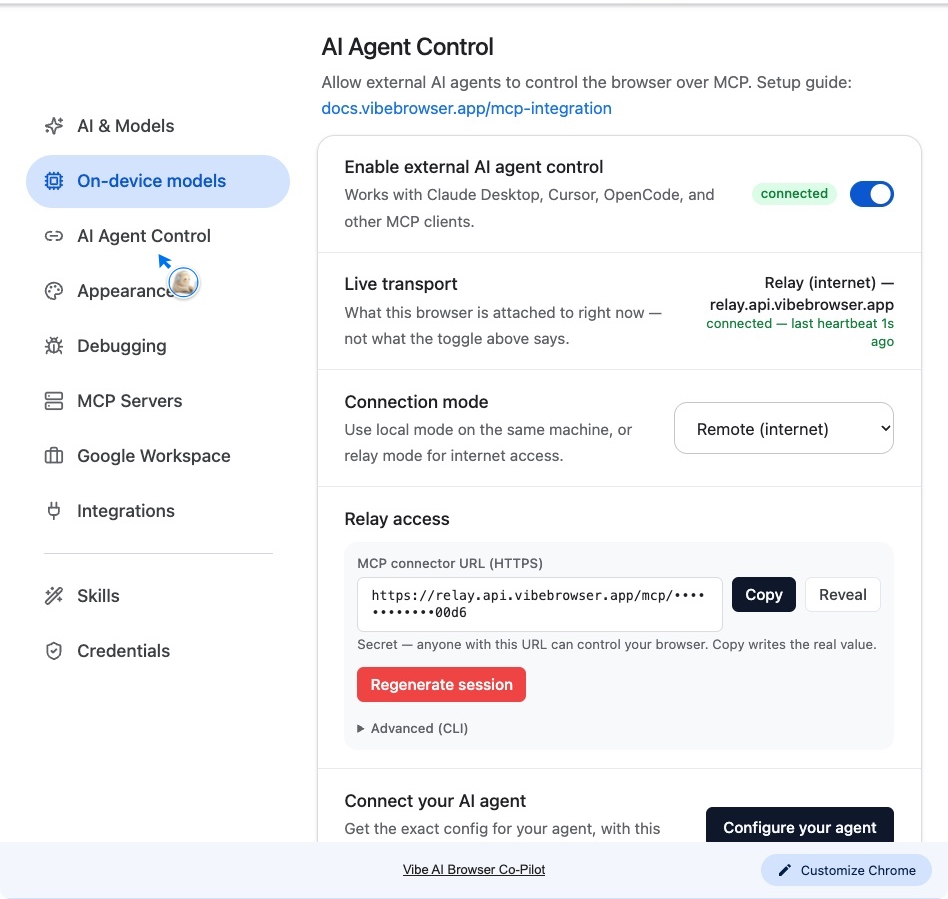
Click the Vibe icon → Settings → AI Agent Control. Turn on "Enable external AI agent control" and set Connection mode to Remote (internet).
3Find your session ID in the extension
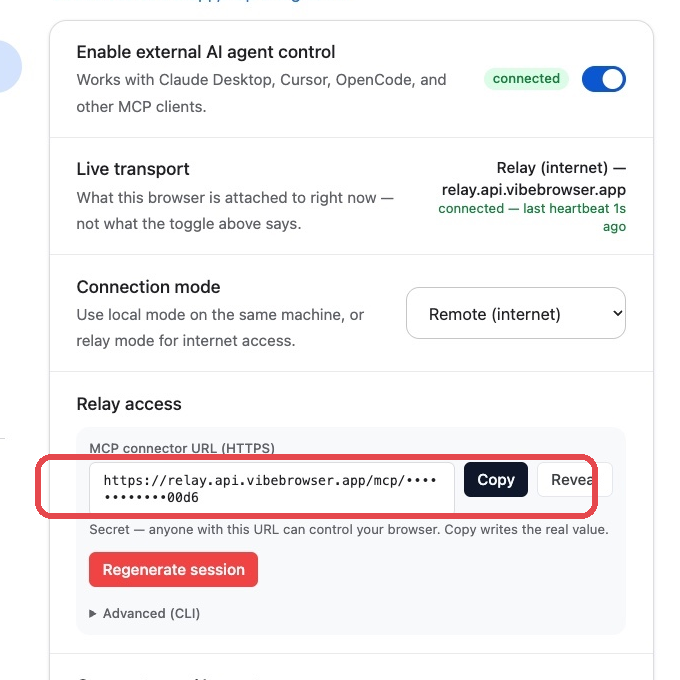
In the Relay access box, find "MCP connector URL (HTTPS)". Your session ID is the part at the end of that URL, after /mcp/. Keep this settings page open — in step 5 you paste that ID once, on Muse’s secure card. Never paste it into a chat.
4Send Muse this prompt
Open Muse and send the prompt below. It contains no secret. Muse replies with a secure credential card for the key — that card is the next step. Once the connector is added, Muse checks it by listing your tabs.
Paste into a Muse chatbashAdd a custom connector named "Vibe Browser" for the Vibe Browser MCP server. The server host is relay.api.vibebrowser.app, and my session ID is sent in the X-Remote-Session header — ask me for the session ID on the secure credential card, and I will paste it there. Once it is connected, list my open browser tabs to check it works, and do not click or change anything yet.5Paste the session ID on the card
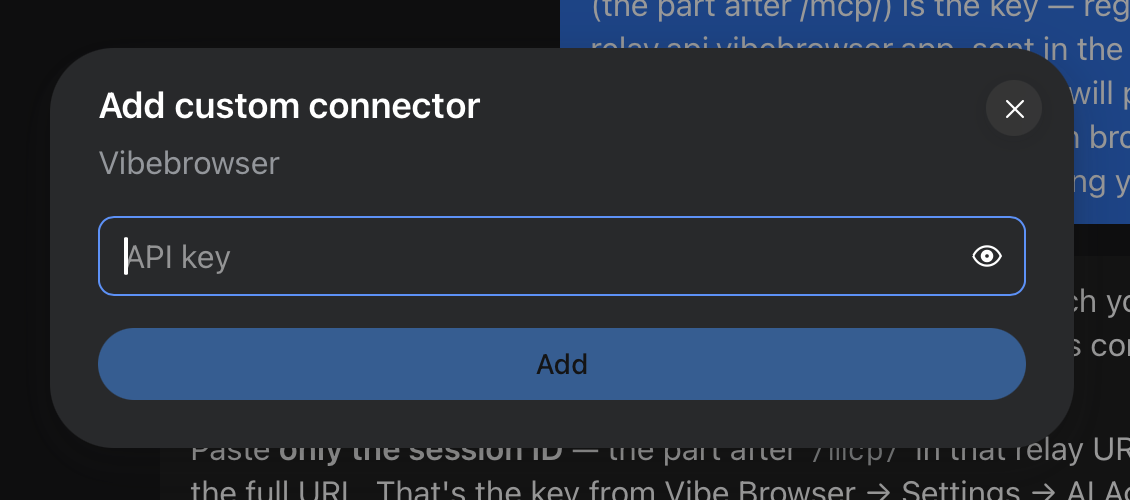
Muse shows an "Add custom connector" card for Vibebrowser with a single API key field. Paste only the session ID from step 3 — not the full URL — and tap Add. The name and host are already set from the prompt; the relay takes the bare ID in that field.
6Find it in your connectors
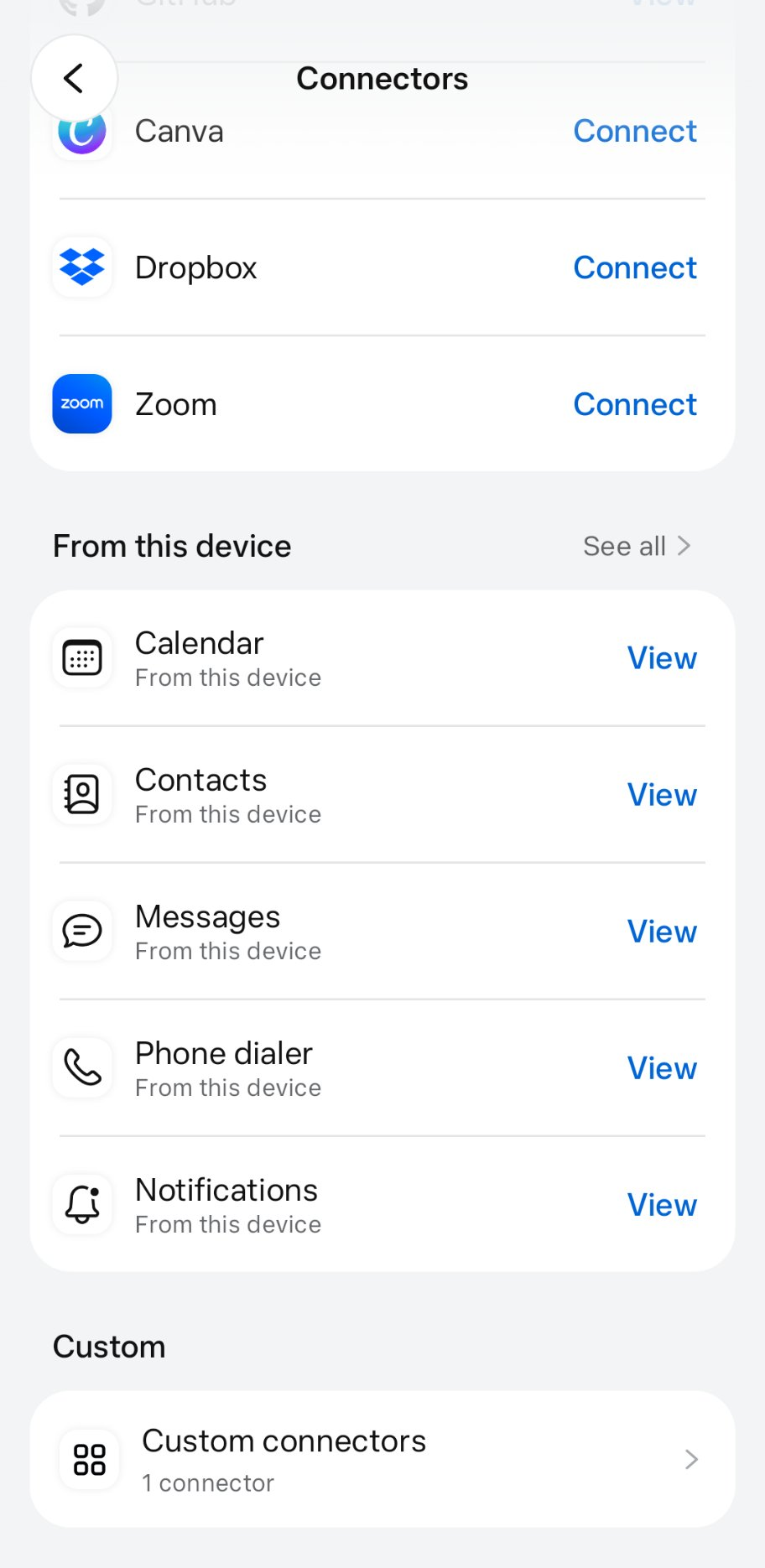
When Muse confirms the connection and lists your tabs, open Settings → Connectors in the Muse app and scroll to Custom → Custom connectors. Vibe Browser is listed there — that is where you view and manage it.
Your relay URL / extension UUID grants live control of your browser session. Treat it like a password: never commit it or paste it into a shared chat.
Quick answers
- Where does the connector live in Muse?
- In the Muse app: Settings → Connectors → Custom connectors. There is no add form in Settings — the prompt in step 4 creates the connector, and it appears in that list, where you can view and manage it.
- Is the MCP connector URL a secret?
- Yes — the session ID is a key to your browser, so it only ever goes on Muse’s secure credential card, never into a chat. That is why the prompt on this page contains no URL and no key. If the ID ever leaks, open the Vibe extension settings → AI Agent Control, click Regenerate session, and send Muse the prompt again.
- What can Muse do once it is connected?
- List your tabs, open and read pages, click, type, fill forms, and take screenshots — in your real Chrome, including pages where you are logged in. A good first task is a read-only one: ask Muse to summarize the page you have open.