Vibe Browser for
Give Grok control of your browser
grok.com/connectors → New Connector → Custom. Paste one URL. Done.
These steps come from xAI's official connector docs for grok.com/connectors. A full end-to-end test in a live Grok account is still in progress, so treat this page as a clear guide, not a finished check.
Setup steps
1Install the Vibe extension in Chrome
Add Vibe AI Browser from the Chrome Web Store (Chrome, Brave, Edge, or any Chromium browser). This is the piece that lets an agent drive the browser you are already logged into — no second browser profile, no re-authentication.
2Copy your agent connection URL from the extension
Click the Vibe icon → Settings → turn on "Enable external AI agent control" → choose Remote (internet) → copy the Agent connection URL. The last path segment is your routing UUID. The connector URL is https://relay.api.vibebrowser.app/mcp/ followed by that UUID. Leave the extension running and remote control on — the connector talks to this browser, so if it is closed there is nothing on the other end.
Vibe extension → Settings → Agent connection URLurlhttps://relay.api.vibebrowser.app/mcp/<your-routing-uuid>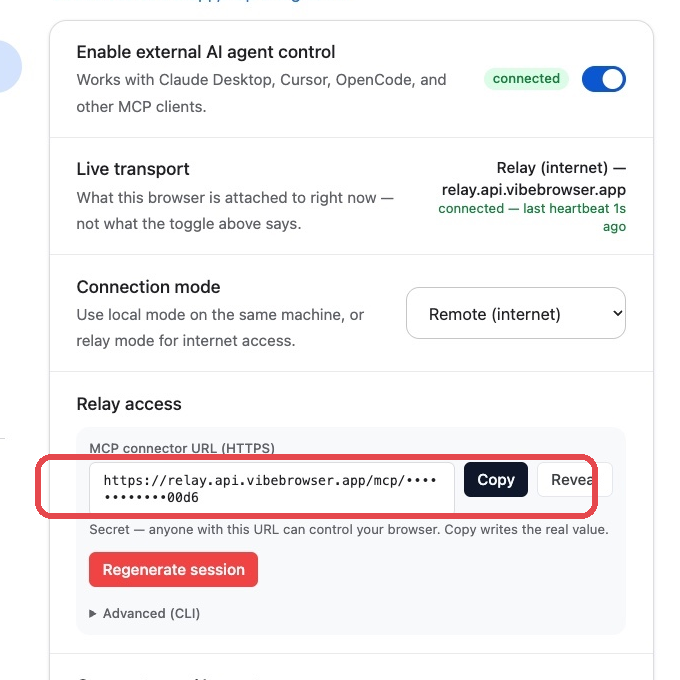
3Add Vibe in Grok: Connectors → New Connector → Custom
Go to grok.com/connectors. Click New Connector, then Custom. Name it "Vibe Browser" and paste your whole connector URL. Save it, then open a chat and ask Grok to open a page for you. We wrote these steps from xAI's own connector docs. One honest note: if Grok asks you for a token or a key during setup, stop — that part is not confirmed yet, and we are finishing the live test now.
4Grok Bot (the desktop app) needs a paid plan first
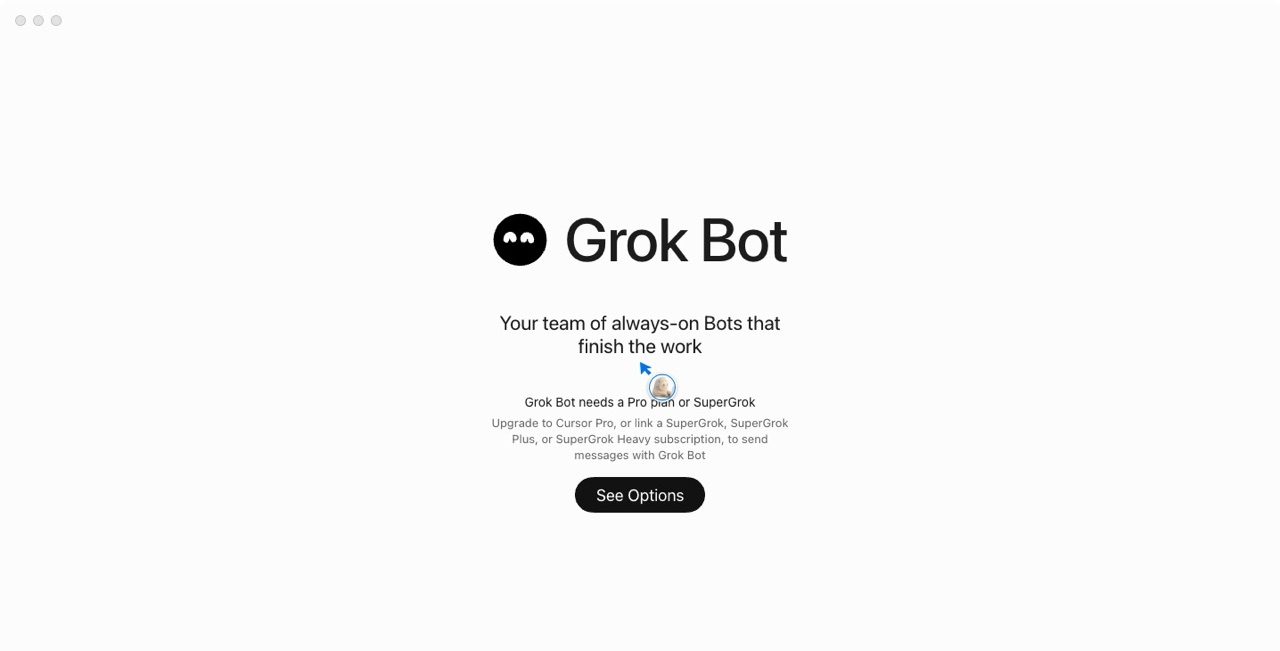
Grok Bot is a separate desktop app from xAI and Cursor — not the grok.com web page above. The app itself is free to open, but it will not run until you add Cursor Pro or link a SuperGrok plan. This is the screen it shows until then. Once your plan is active, bots in the app use connectors the same way: give the bot your Vibe URL and it can work in your browser.
Your relay URL / extension UUID grants live control of your browser session. Treat it like a password: never commit it or paste it into a shared chat.
Quick answers
- Does Grok need my browser password?
- No. Grok never sees your passwords. It sends tool calls to the Vibe relay, and the extension acts inside the Chrome you are already signed into. The connector URL itself is a secret — treat it like a password and regenerate it in the extension if it leaks.
- What can Grok do once it is connected?
- Open and read pages, click, type, fill forms, scroll, and take screenshots — in your real browser, with your sessions. Ask it to check a page you are logged into and watch your own tab move.
- What if Grok asks for a token or a key?
- Stop there. The confirmed setup is URL-only. A token prompt means that screen is not covered by our test yet — tell us what you saw and we will update this page.
- Does this work for Grok bots too?
- Bots built on Grok use the same connector idea: a tool server the bot can call. If your bot setup accepts a custom connector URL, the same Vibe URL works. Bot platforms differ, so check what yours accepts before you paste it anywhere.