Give Claude on the web control of your browser
Settings → Connectors → Add → Add custom connector. Paste your https://relay.api.vibebrowser.app/mcp/<your-routing-uuid> URL and Claude drives your real Chrome — web, Cowork and mobile.
Every Claude surface
A custom connector is just a URL, so it works from every Claude surface at once — web, Cowork, desktop, mobile.
One paste, nothing else
Setup is one paste: no client id, no secret, no consent screen, nothing to configure beyond the URL itself.
Your real Chrome, via relay
The Vibe relay bridges that connection to the Chrome extension on your machine, so Claude acts in the browser you are already signed into.
Only the extension
Nothing to install beyond the extension: no npx, no local server, no second browser profile.
On only when you want it
Toggle it per conversation, so a chat only reaches your browser when you want it to.
How it works
What the connector URL actually connects to
Claude supports custom connectors backed by a remote MCP server. Open Settings → Connectors → Add → Add custom connector and paste your Vibe connector URL, https://relay.api.vibebrowser.app/mcp/ followed by the routing UUID from the extension. Claude can then navigate, click, type, scroll, screenshot, and read your real Chrome — including pages behind a login. Because the connector is brokered by your Claude account, it works in Cowork and on mobile, not just Claude Desktop.
  Claude on the web, Cowork, or mobile
        │
        │  paste https://relay.api.vibebrowser.app/mcp/<your-routing-uuid>
        ▼
  https://relay.api.vibebrowser.app/mcp/<uuid>   ← hosted by Vibe, routes by UUID
        │
        ▼
Vibe extension in your real Chrome ← set to "Remote (internet)"Copy your URL first: Vibe icon → Settings → AI Agent Control → Remote (internet) → copy the Agent connection URL. Then in Claude open Settings → Connectors, click Add → Add custom connector, name it "Vibe Browser", paste the URL, and click Add. Custom connectors need a paid Claude plan.
https://relay.api.vibebrowser.app/mcp/<your-routing-uuid>The /mcp/<your-routing-uuid> URL above is a bearer capability for your real, logged-in browser. There is no second factor: anyone who holds it can open your tabs, read the pages you are signed into, and act as you. Nothing else is needed to use it.
- Never paste it into a shared chat, a ticket, a README, a screenshot, or a support thread. Redact the UUID before sharing anything.
- Never commit it to a repo or write it into a config file that gets committed. Keep it out of shell history and CI logs.
- If it leaks — or you are unsure — open the Vibe extension settings and regenerate the connection URL. The old UUID stops routing immediately, and you re-paste the new URL into the connector.
- Turn "Enable external AI agent control" off when you are not using it. With it off, the URL routes nowhere.
Quickstart
Connect Claude in 3 steps
Install the extension, copy your connector URL, add the custom connector in Claude, then turn it on in a chat.
Install the Vibe extension in Chrome
Add Vibe AI Browser from the Chrome Web Store (Chrome, Brave, Edge, or any Chromium browser). This is the piece that lets an agent drive the browser you are already logged into — no second browser profile, no re-authentication.
Add the connector in Claude: Settings → Connectors → Add
Copy your URL first: Vibe icon → Settings → AI Agent Control → Remote (internet) → copy the Agent connection URL. Then in Claude open Settings → Connectors, click Add → Add custom connector, name it "Vibe Browser", paste the URL, and click Add. Custom connectors need a paid Claude plan.
Vibe extension → Settings → Agent connection URL
https://relay.api.vibebrowser.app/mcp/<your-routing-uuid>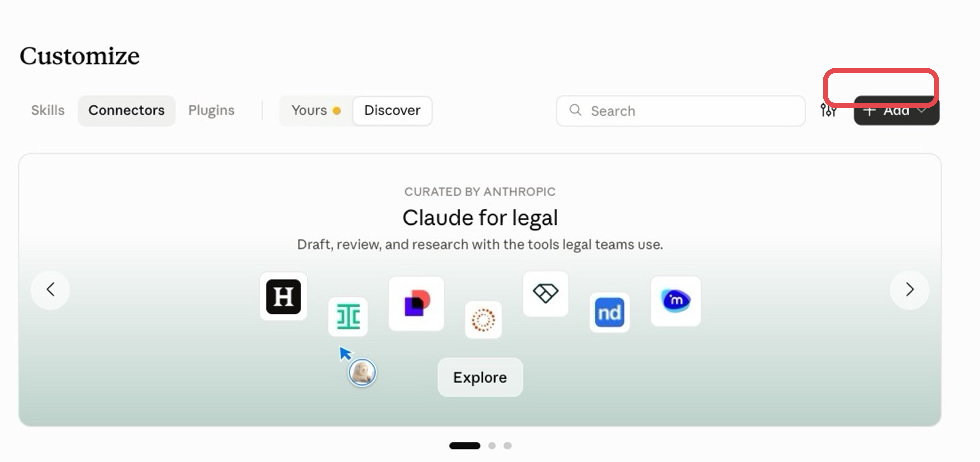
Turn it on in a chat
In a chat, tap + → Connectors and turn Vibe on. Keep Chrome open with the extension running. Then ask Claude to open a page — your browser does the work.
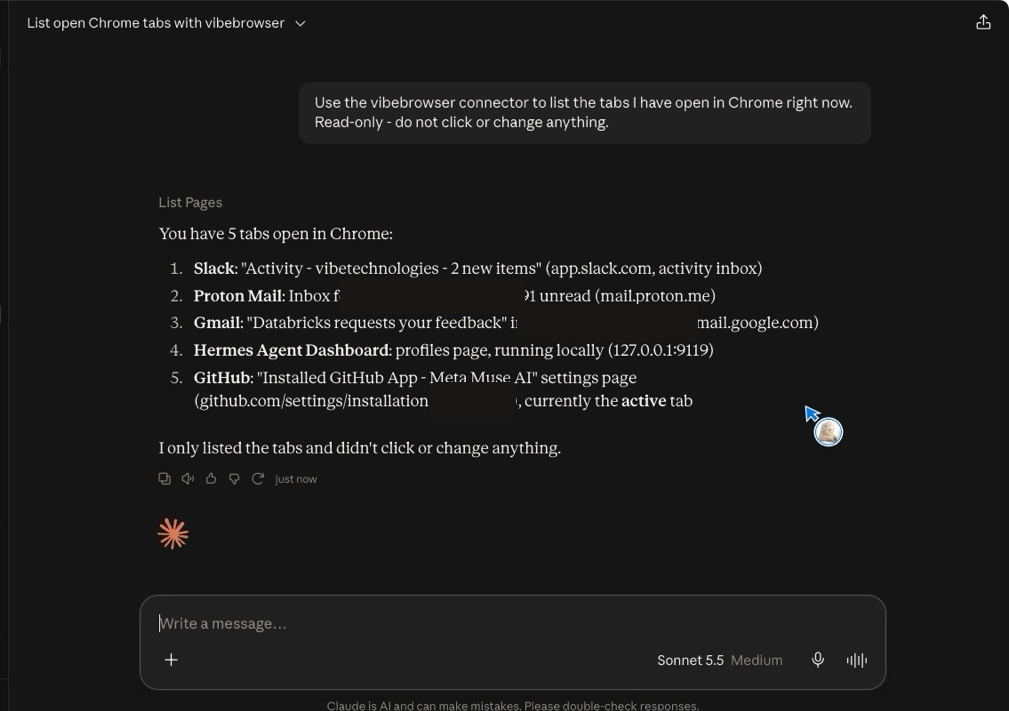
Verified end to end in a real Claude account on October 19, 2026 with the direct connector URL https://relay.api.vibebrowser.app/mcp/<your-routing-uuid>: the connector is saved under Customize → Connectors, and a live prompt made Claude call List Pages and return the real open Chrome tabs.
Checked October 19, 2026
If you use Claude Desktop, register @vibebrowser/mcp as a local STDIO server instead — page content never leaves your machine. See the Claude Desktop setup or the MCP setup page.
Connector URL — paste into Settings → Connectors → Add custom connector
https://relay.api.vibebrowser.app/mcp/<your-routing-uuid>Verification
Check it works
Do not trust a green checkmark. Run this prompt in a chat with the connector enabled and check the answer yourself.
Go to duckduckgo.com and find out when the first GPT model was released.Pick this over "open google.com" because a wrong answer is unmistakable: the assistant cannot satisfy it from memory-free small talk, and you can watch the tab actually navigate. If the answer comes back as 2018 and you saw your browser move, the connector is wired end to end. If the assistant answers 2018 without your browser doing anything, it answered from its own knowledge — ask it again and require it to cite the page it opened.
Verification prompt
Go to duckduckgo.com and find out when the first GPT model was released.Troubleshooting
The client rejects the URL with a 401, or tool calls fail with 401 Unauthorized.
Cause: The routing UUID in the URL is wrong, mistyped, truncated, or was regenerated in the extension after you pasted it — so the relay has nothing to route to.
Fix: Re-copy the Agent connection URL from the Vibe extension settings and re-paste the whole URL, keeping the /mcp/ path segment and the full UUID intact.
The connector saved fine and tools are listed, but every tool call errors or hangs.
Cause: Nothing is on the other end of the relay: the browser with the Vibe extension is closed, or external agent control is switched off, or the mode is set to Local instead of Remote (internet).
Fix: Open the browser that has the Vibe extension, click the Vibe icon → Settings, confirm "Enable external AI agent control" is on and the mode is Remote (internet). Then retry the prompt.
No tools show up at all after saving the connector.
Cause: The URL points at the plain relay root rather than your routing path, so there is no session to enumerate tools for.
Fix: The URL must be https://relay.api.vibebrowser.app/mcp/<your-routing-uuid> with your UUID as the last path segment — remove the connector, re-add it with the full URL, and reload the page.
The assistant answers the question but your browser never moved.
Cause: It answered from its own knowledge instead of calling a tool. This is a prompt problem, not a connection problem.
Fix: Re-ask and require evidence: "Use your browser tools to open duckduckgo.com, then tell me which page you read." If it still refuses, check the connector is toggled on for that specific conversation.
Per-client setup
Connect your agent
Your connector URL lives in the Vibe extension under Settings → AI Agent Control → Agent connection URL. It grants live control of your browser, so treat it like a password.
Claude (web, Cowork & mobile)
In Claude open Settings → Connectors → Add → Add custom connector, name it “Vibe Browser”, paste your connector URL, and click Add. Then in a chat tap + → Connectors and turn Vibe on for that conversation. Custom connectors need a paid Claude plan.
Prefer one click? Paste your URL into the install-link generator on /mcp — it builds the prefilled claude.ai link in your browser and never shows or stores your URL.
https://relay.api.vibebrowser.app/mcp/<your-routing-uuid>